Friday, August 29, 2008

Mac Tip of the Day: Email attachments quickly

If you’re looking for a quick and easy way to send email attachments there is no faster way than by using Mail.


We all know the standard way. Open Mail…Select New Message…click on
the Attachment Paper Clip icon…fill out your email…and Send.


There is actually a much quicker way to do this. Just take the
attachment you would like to send, and drag it to the Mail icon in the
Dock. Mail will launch, a new message will pop up, and your file will
already be attached.


Fill our your email, and click Send.

via Mactips.org

Wednesday, August 27, 2008

Mac Tip of the Day: Spotlight

How often do you use "Spotlight"? This is one of the biggest gems in Mac OS since its Tiger (10.4) introduction.

To activate Spotlight, you can either click on the magnifying glass on the top right of your screen, or use the keyboard shortcut: command + spacebar.

Once you activate Spotlight, type in what you want to find. Every file, from applications to emails to documents, are indexed by your computer.

Find the file/application you want, press enter and it will open the document or application.
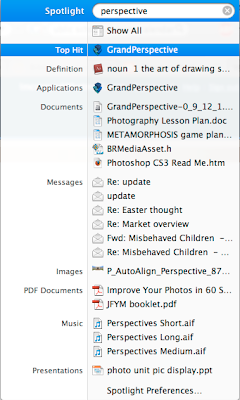
Why is this so important? Well, I never use the dock anymore. I rarely use the Finder to find stuff. Spotlight is where I go for everything! It's faster than taking your hands off of the keyboard or searching through endless finder windows for that one document from last year...

Remember: command + spacebar!

Notes:
1. Top Hits (most frequently accessed files or applications) are always the first hit at the top and are automatically highlighted. This makes it super easy to launch applications. Just hit enter when you see the name of your favourite application!

2. Everything in your documents -not just their names- are indexed by Spotlight. If you can't remember the file name, but can remember that it had the words "cashflow" and "Greg Benson" in it, type them into Spotlight and the document will show up

3. If you just want to see where a file is rather than open it (like if you want to copy it to your portable USB drive), highlight it, then press command + enter to open its enclosing folder

4. If you don't see the file you're looking for, hit "show all" for a longer list

5. If you're looking for a specific type of file, you can specify what you're looking for right in Spotlight. Just type in a keyword or two, then kind:jpeg, kind:document, kind:pdf, kind:photoshop... you get the idea

6. Want to know a word's definition, synonym, etc? Type it into Spotlight and select definition!

Why I quit using Windows

Saturday, August 16, 2008

What's taking up all that space?

Alexa asks:
I haven't installed anything new. I haven't added any large files to my computer. But I keep running low on hard drive space! How do I find out what is taking up all the room on my iBook?
Apple's Finder doesn't cut it. It'll tell you how much space is left on your hard drive, but it doesn't give you a bird's eye view on what is taking up your hard drive space.

Enter Grand Perspective. This free application gives you an interactive, graphical "tree view" of your Mac's hard drive.

Step 1: Download and install Grand Perspective.

Step 2: Select the hard drive of concern:
Step 3: Wait a few minutes for Grand Perspective to scan your hard drive
Step 4: Be overwhelmed by the graphical representation of your hard drive. (FYI, the largest block is my iPhoto library)
Step 5: Mouse over the larger blocks to find out what they are and how much space they're taking up, then click on the blocks you don't think you need, then click "reveal" to see where it is in the Finder
Step 7: Delete and repeat!

This is an awesome free app and I know it saved Alexa a huge headache; she found out that Azureus was taking up 7.5GB of space. Needless to say, she deleted Azureus and is now using Transmission and enjoying having almost 1/5th of her hard drive back!

note: There is a rhyme and reason behind the colours and groupings of the squares that Grand Perspective uses: Files in the same folders are grouped together, then folders that are in the same folders, etc.

Friday, August 15, 2008

Virus on a Mac?

So my older brother downloaded some malicious software on my parent's iMac. Boom: computer doesn't work. My dad took it to the local Mac fix-it shop and they said they couldn't revive it. For the record, he was using Windows through Boot Camp when he downloaded said software.

Mac's don't get viruses in their native OS (although there is a Trojan Horse or two out there), but if you use Boot Camp to run Windows on a Mac, the Windows partition is vulnerable to malicious Windows software.

I'm completely ready to trash the Windows partition and start from scratch, but hopefully I don't have to format the Mac partition... UGH!

So my weekend challenge is to succeed where Neural Net could not and get this machine working again, hopefully with as few (data) casualties as possible. If you have any advice or well-wishes, leave it in the comments!

Update: It took me 10 minutes to fix the problem. The only casualty was my bro's pirated movie/music collection. You can imagine how bad I feel about that...

Friday, July 25, 2008

How to reset your iPod

Chris asks: my ipod has a strange error message on it and I can't play my music?

Solution:

Important: If your iPod is frozen or won't turn on,
it may be because iPod is paused or the Hold switch is in the locked
position. If so, a lock symbol appears on the screen. Slide the Hold
switch to the unlocked position and check the screen.

"If the iPod displays shows any of the following messages you should eject the iPod from within iTunes instead of resetting it:"
  • Connected. Eject before disconnecting
  • Sync in Progress. Please wait...
  • Do not disconnect
If your iPod is frozen or won't turn on, the steps to reset it vary by model. You can easily tell which iPod model you have if you're not sure.

If you have an iPod with a click wheel. Which is probably 95% of people. Here is how to reset your ipod.

1. Toggle the Hold switch on and off. (Slide it to Hold, then turn it off again.)

2. Press and hold the Menu and Center (select) buttons simultaneously until the Apple logo appears, about 6 to 8 seconds. You may need to repeat this step.

If this doesn't work, try connecting your iPod to a power adapter or to your computer as your iPod may have no battery life left to perform the reset.

Most of the time this solution will fix the problems you are having and in a few seconds you should be able to listen to all your music again. If it still isn't responding then you may have a bigger issue. If so you could contact us here or go directly to Apple support.


Wednesday, July 23, 2008

My Heart Will Go On

I love the classics. No, not Beethoven and Mozart, Super Nintendo and N64. The great news is, rather than dragging out your old console system from your parent's basement, you can use an emulator on your computer and relive all those great classic gaming moments.
Super Mario World looks great on SNES9x
I am a Mac user, so the emulators I use are SNES9x for Super NES (donationware) and SixtyForce for N64 (shareware, but worth the $16 fee). I'm not a fan of using the keyboard to play console games, so I bought an XBox 360 USB controller and downloaded a 3rd party driver to make it work on my Mac.
My 5 year old son LOVES playing Super Mario Kart with SixtyForce
One of my favourite things about gaming with an emulator is that they allow you to freeze your game at any point and return to it later. FAR better than leaving your console paused for the evening because the wife HAS to watch Juno for the 15th time this week, only to have her shut it off. Love you, Honey!

Anyways... what about the games? Consult almighty Google for websites that have ROM's for these emulators (CoolROM.com has a bunch). ROM's are basically images of the old cartridges for these systems. The best part is that you don't have to blow into them to make them work with your computer, you just keep them in a folder on your computer's hard drive and open them with your favourite emulator.

Awesomeness!

Note: The screenshots are of the windowed mode in these applications, but you can run them in full screen mode too.